How TachTab works
Set your rate once. After that, book the aeroplane when you want it and type in the Hobbs reading when you land. Everything below happens on its own.
Every picture on this page is the real application, not a mockup.
The whole thing in one line
Book it → fly → Hobbs in → itemised invoice out → engine reserve everyone can see → statements on the 1st.
Step 1
Bring what you already have
Drop in your MyFBO export or your club spreadsheet and the group builds itself. Nobody retypes anything.
Signing up asks for your tail number, your rate and the people you fly with. If that already exists in a file — a MyFBO report, a Flight Circle export, or the spreadsheet a treasurer has been keeping for nine years — put the file in instead and TachTab reads the aircraft, the rates and the partners out of it.
It shows you what it found and which column it thinks is which before anything is saved, so you can correct a wrong guess rather than discover it a month later.
Starting from nothing is fine too. It takes about two minutes either way.
Step 2
Tell it what your aeroplane costs to fly
You do this once, when you sign up, and then almost never touch it again.
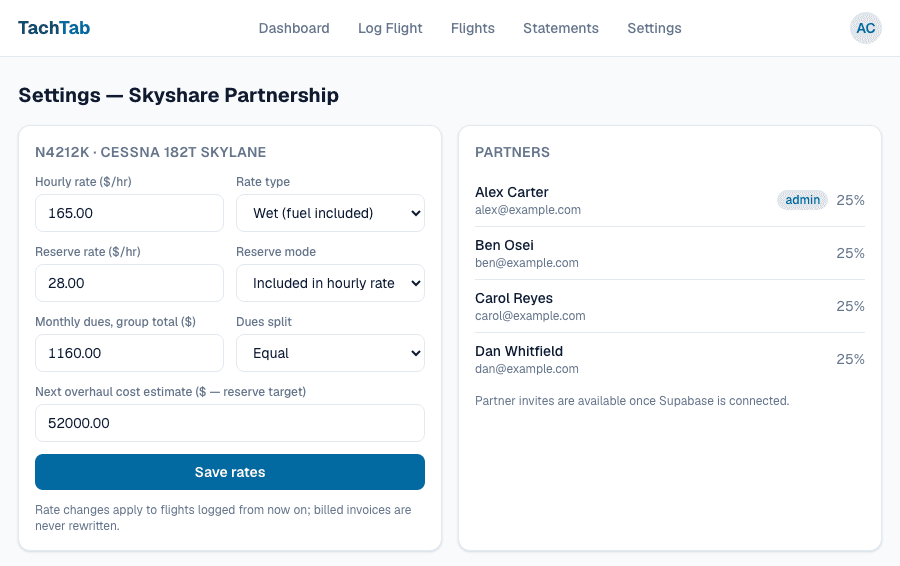
Put in the hourly rate your group charges, say whether that rate is wet (fuel included) or dry, and pick whether you bill on the Hobbs meter or the tach. If you also put money aside for the engine overhaul, add the reserve per hour and what you think the overhaul will cost.
Monthly dues — hangar, insurance, the subscriptions — go in here too, as one total for the whole group. TachTab splits that between partners, either equally or by ownership share.
Set the aircraft's home time zone while you are here. Every booking and every flight date is shown in the time zone the aeroplane lives in, so a partner booking from another state doesn't have to do arithmetic to work out who has it on Saturday morning.
Change a rate later and it applies to flights from that point on. Invoices already issued are never quietly rewritten.
Step 3
Book the aeroplane
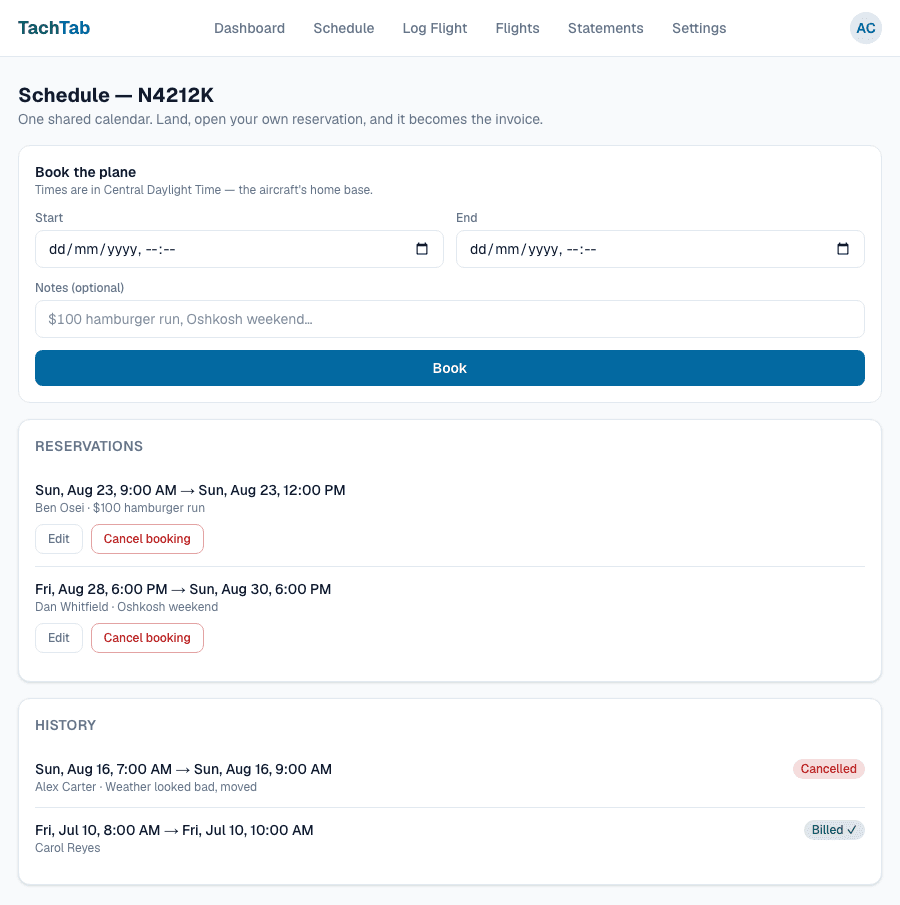
Pick the aircraft, the start and the end, and add a note if it helps. That's a reservation.
Everyone in the group sees the same calendar, in the aircraft's home time zone. If someone already has it, the booking is refused rather than accepted and argued about later. Two bookings that meet exactly — one ends at noon, the next starts at noon — are allowed on purpose, because handing the aeroplane over at the top of the hour is the normal way a group flies, not an edge case.
If your group charges a daily minimum for long trips, set it per aircraft. A booking that spans more than one calendar day bills at least that much per day, because a partner who takes the aeroplane away for three days has made it unavailable to everyone else for three days whether the engine ran for two hours or twelve.
A flight that starts and finishes on the same day never gets that minimum, however short it is. Charging a full day for a half-hour circuit would make exactly the local flying that keeps an engine healthy the most expensive kind to do.
Step 4
After you land, type in the Hobbs
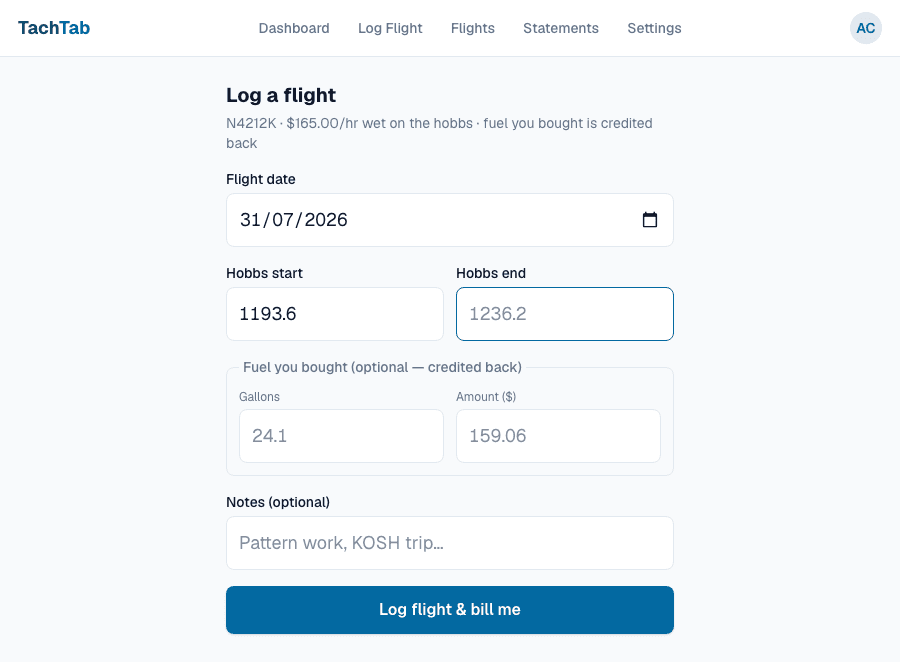
This is the only thing anyone has to remember to do. It takes about twenty seconds.
Open your booking and log the flight straight from it — the aircraft and the notes are already there, and the starting meter reading is carried over from the last flight, so you only type the number you finished on. If you bought fuel, add the gallons and what you paid.
Then press the button. That's the whole job. The booking is marked as billed, so a trip can't quietly be charged twice.
No booking? Log the flight on its own. Nothing about the calendar is compulsory.
Step 5
The invoice writes itself
You don't build the bill. It already exists by the time you've shut the hangar door.
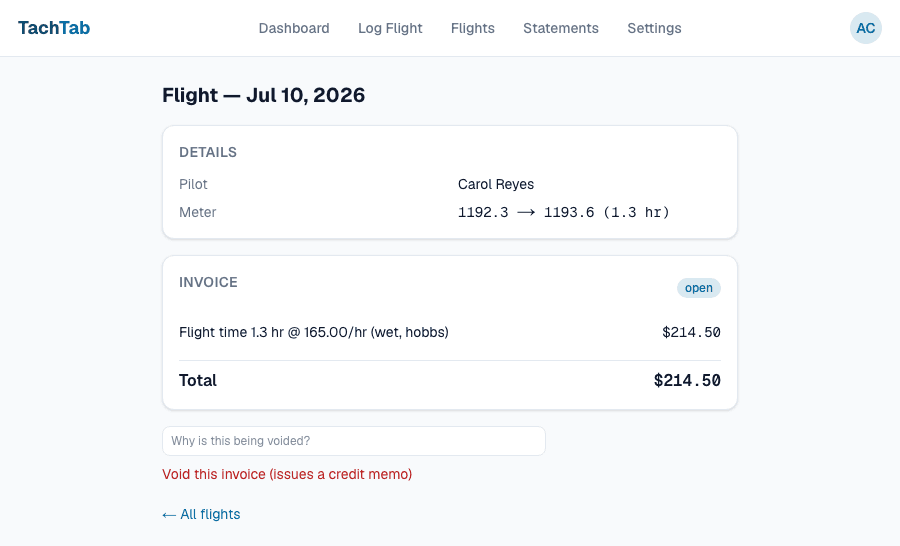
TachTab works out the hours from the two meter readings, multiplies by your rate, and itemises it. If you flew on a dry rate and bought fuel, the fuel you paid for is credited straight back against the charge, so you are never out of pocket for filling up the group's aeroplane.
Every line says what it is and how it was worked out. Nobody has to take anyone's word for a number.
Step 6
Everyone sees the same numbers
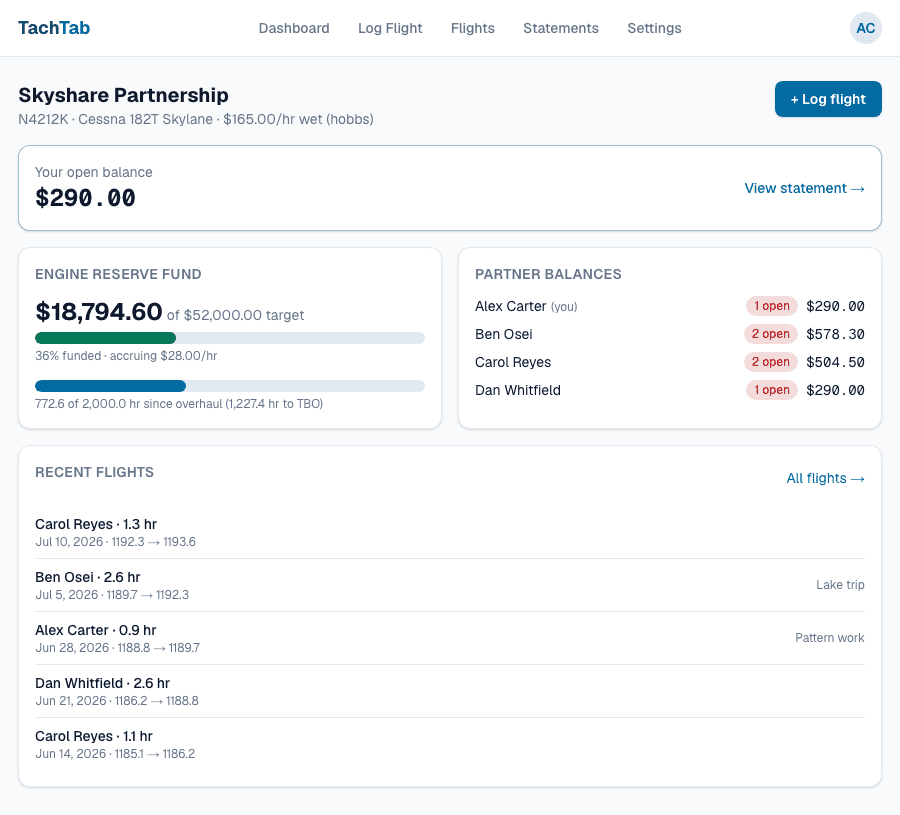
The dashboard is the same for every partner. There is no version only the treasurer can see.
Your own balance is at the top. Underneath it, the engine reserve fund: how much cash is actually in it, what the overhaul is expected to cost, and how many hours are left before the engine reaches TBO. More than one aeroplane means more than one reserve — each aircraft keeps its own fund and its own TBO clock.
That reserve number is the one that quietly poisons partnerships — everybody assumes somebody else is tracking it. Here it's on the front page, and it moves on its own every time somebody flies.
It moves on the hours actually flown, too. If a long trip billed a daily minimum, the extra covers the group's fixed costs — it does not pretend the engine ran longer than it did.
Next to it, what each partner currently owes. Not to shame anyone: so the conversation happens now rather than in a year.
Step 7
On the 1st, statements go out
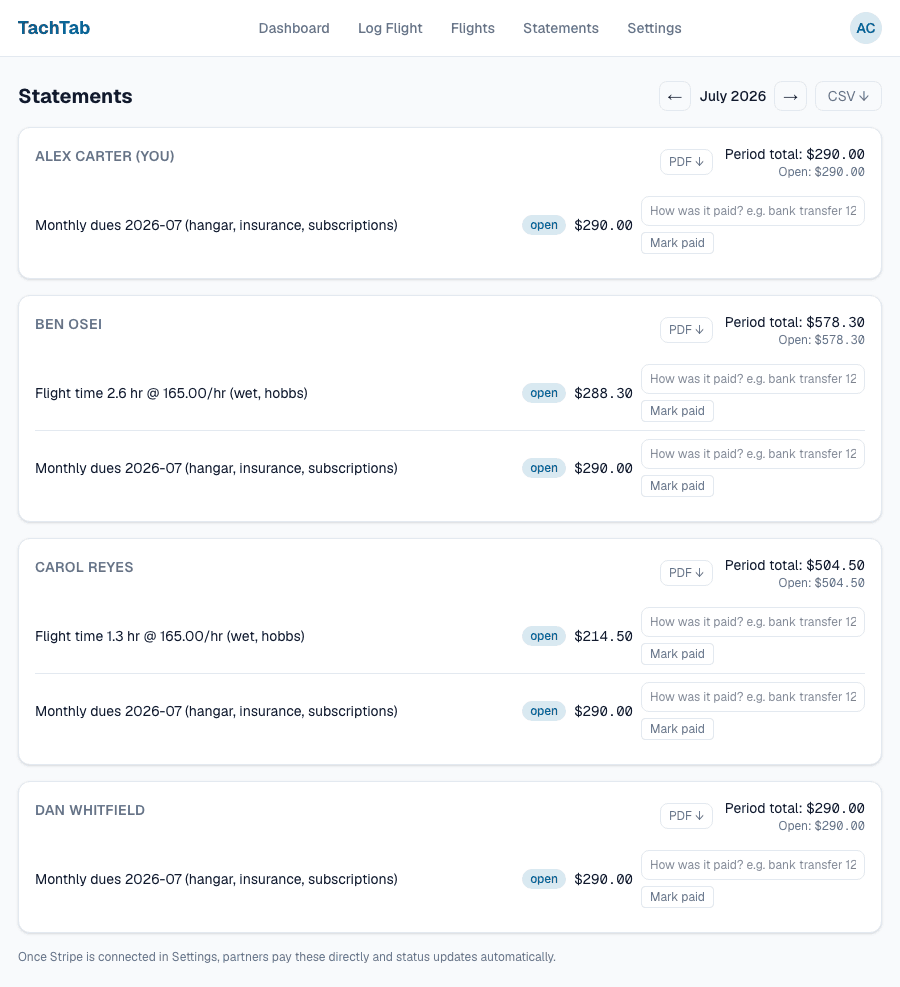
Dues are added, statements are built per partner, and the emails send themselves.
Each partner gets their own statement for the month with every line itemised — flights, dues, fuel credits, anything you adjusted. They can download it as a PDF, and you can export the lot as a CSV for whoever does your books.
You don't have to do anything to make this happen. It happens whether or not you remember it's the 1st.
Step 8
Partners pay you directly
Connect Stripe once and partners can pay by card or bank transfer from their statement.
The money goes straight into your group's own Stripe account. It never passes through us, and we never hold it. If you'd rather keep taking cheques and bank transfers, you can — mark an invoice paid by hand and write down how it was paid.
Step 9
Typed the wrong Hobbs? Nothing breaks
Void the invoice, give the reason, and TachTab issues a proper credit memo and a replacement.
Nothing is ever silently edited. The original stays, the credit memo cancels it, and the corrected invoice sits alongside both — so three months later the trail still explains itself, and the reserve fund is corrected too.
This sounds like bookkeeping pedantry until the first time someone questions a charge from last spring.
Who does what, in order
One person sets the group up. Everybody else just flies. Here is each job, once through.
If you are setting the group up
About two minutes of typing, then you are largely done with it.
Start the trial — /signup
30 days, no card. You are the admin of the group you create — the only role that can invite partners, connect Stripe or change rates.
Describe the aeroplane — Setup wizard
Group name, tail number, model, and the home time zone — that last one is required, because without it nobody can be sure which calendar day a booking falls on. Then the hourly rate, whether it is wet or dry, and whether you bill on the Hobbs or the tach.
Decide how the overhaul gets funded — Setup wizard
Reserve per hour, and whether that is Included in hourly rate or Billed on top. Add what you think the overhaul will cost and the dashboard can tell every partner whether the fund is actually on track, not just what is in it.
Put the fixed costs in — Setup wizard
Hangar, insurance, subscriptions — one monthly total for the whole group. Split it Equal or By ownership share. This is what goes out as dues whether anyone flies or not.
Invite the partners — Settings → Partners
Full name, email, and their share percentage. Each one gets an email link; they set their own password and land in the same group.
Connect Stripe — Settings → Payments
Admin only. This is Stripe Connect, so partner payments go straight into your group's own Stripe account — TachTab never holds the money. Payments stay switched off until Stripe finishes its onboarding checks, which is normal and usually quick.
Set a daily minimum, if your group has one — Settings → per aircraft
Minimum booking hours per day, for trips that span more than one calendar day. Leave it at 0 to turn the rule off entirely. A same-day flight never attracts it.
Pay for TachTab itself — Settings → Your TachTab subscription
Separate from the Stripe connection above: that one is how your partners pay you, this one is how you pay us. $29 a month or $290 a year, per aircraft.
If you have been invited
There is no setup for you at all. Three of these five are things you do anyway.
Open the invite — Email
Set a password and you are in. Nothing to configure — the rates, the aeroplane and the other partners are already there.
Book the aeroplane — Schedule
Start, end, and a note if it helps. Everyone sees the same calendar in the aircraft's home time zone, and if someone already has it the booking is refused rather than accepted and argued about later.
Log the flight when you land — Log Flight
Open it from your own booking and the aircraft, notes and starting meter reading are already filled in — you type the number you finished on. Add the gallons and what you paid if you bought fuel. About twenty seconds.
See what you owe — Statements
Your invoice is itemised: the flight, the reserve, your share of the dues, and any fuel you bought credited back. If the group has connected Stripe, Pay settles it by card and the statement updates itself.
Check the engine fund whenever you like — Dashboard
The reserve balance and the hours left to TBO, visible to every partner, not just whoever does the books.
After that it runs itself. Statements go out on the 1st of each month without anyone pressing anything, and a rate you change today applies to flights from today on — invoices already issued are never quietly rewritten.
What it doesn't do
It is not a maintenance system. No inspection tracking, no airworthiness directives, no squawk list. It tracks the hours to TBO against the money set aside for the overhaul, because that is a financial question — but if compliance is what keeps you up at night, Coflyt does that job properly and we don't.
It is not a logbook. TachTab records meter readings so co-owners can be billed correctly; your FAA logbook remains the record of authority.
It is not built for flight schools. No student endorsements, no instructor rosters, no Part 141 syllabus. It is built for people who own an aeroplane together.
Try it with your own aeroplane
30-day trial, no card. Setup takes about two minutes: your tail number, your rate, and the people you fly with.
Moving off a spreadsheet or MyFBO? Clean up your data with the free export tool first →